> ## Documentation Index
> Fetch the complete documentation index at: https://docs.orbitrage.ai/llms.txt
> Use this file to discover all available pages before exploring further.
# Slack
> Run Orbitrage from Slack — onboard, create projects and keys, ask analytics, and get proactive alerts.
The Orbitrage Slack app is a **full agent**, not just a notifier. Once a workspace is connected, your team can do almost everything from Slack — onboard, create projects and API keys, ask any cost/usage/anomaly question (with charts), and get proactive incident and anomaly alerts. **Most users never open the dashboard.**
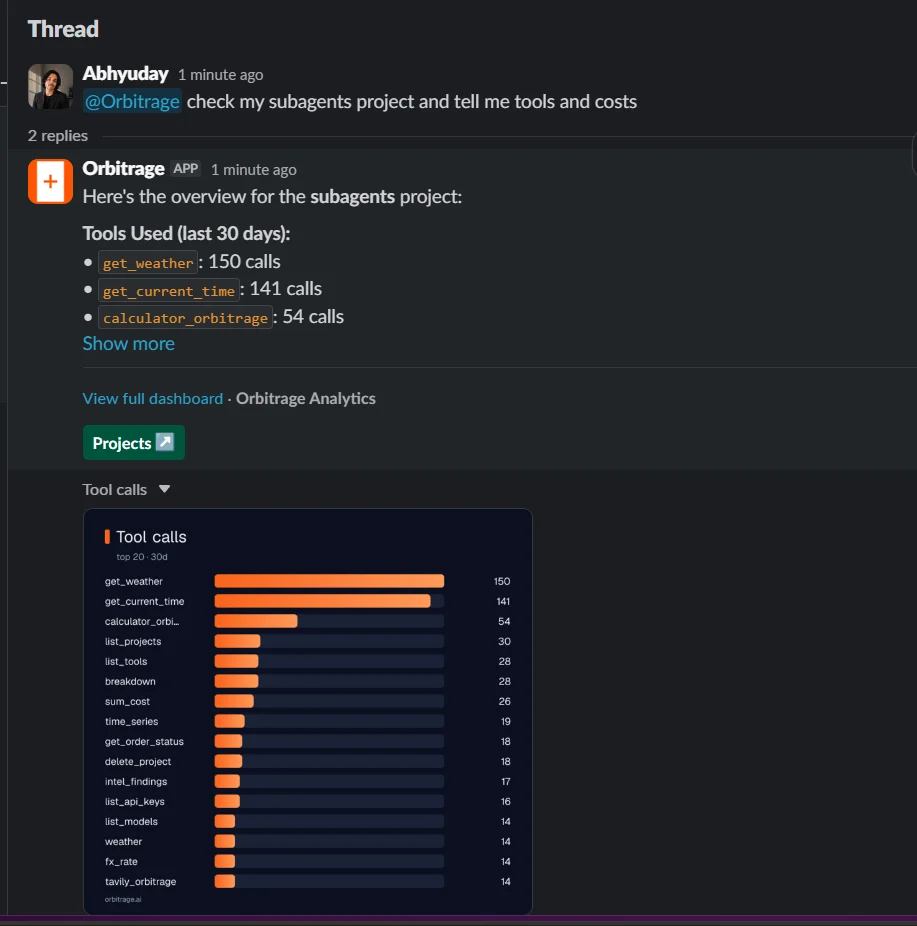
`@Orbitrage what's our spend this week?` — answers in-thread with a takeaway and a chart image.
"Create a project called Prod", "mint an API key", "set an alert on cost" — executed from Slack (with a confirm step).
Proactive messages when your first workflow goes live and when anomalies are detected — no setup beyond connecting.
A guided card walks a new workspace from zero to a working API key and integration snippet.
 ## What you can do from Slack
DM the bot for an onboarding card. *Create my first project* → a modal → your API key plus an integration guide arrive in the DM (the key is shown once, ephemerally). The App Home tab is a persistent starting point.
Mention the bot or DM it: "cost trend last 7 days", "top models by spend", "which workflow errors most", "anomalies today". You get a text takeaway plus a rendered PNG chart in the thread. Same engine as [Ask Analytics](/platform/ask-analytics).
"create a project called Prod", "create an API key for Prod", "alert me when cost goes over \$50/day". Each write shows a **Confirm** button first; on confirm, the bot executes it and delivers any secret (like a minted key) ephemerally.
"deep dive on what's wrong" kicks off a background investigation that posts a root-cause brief (and reports) back into the thread when ready.
`/orbitrage ` works from anywhere, even channels the bot isn't in — the answer arrives in your DM.
## Permissions
* **Anyone** in the workspace can ask read-only analytics questions.
* **Only the installer** can create, mint, or delete. Those actions run as the installer's Orbitrage account, and every write requires an explicit **Confirm** click. A non-installer asking for a write is politely refused.
## Connect a workspace
From the dashboard's **Customise → Slack** section, click to install and authorize the Orbitrage Slack app into your workspace via OAuth.
On install, the bot creates (or joins) an `#orbitrage-alerts` channel and sends a welcome message. If it can't, it DMs the installer with next steps.
DM the bot, `@mention` it in a channel, or use `/orbitrage`. That's the whole setup.
## Proactive alerts
With no further configuration, the Slack agent will:
* announce when your **first workflow goes live** (your first real LLM call), and
* post **anomaly alerts** when traffic deviates from its baseline (the detection in [the Intelligence layer](/concepts/intelligence)).
These run on a lightweight monitor every few minutes. You can also wire up explicit [webhook/Slack alerts](/platform/alerts) for specific metric thresholds.
## Two ways to send to Slack
Beyond the agent, Slack is also a delivery target for alerts:
| Method | Set where | Used by |
| ------------------------------- | ------------------------------------------------------------- | ---------------------------------------------------- |
| **Connected app** (recommended) | Customise → Slack (OAuth) | The agent, onboarding, proactive alerts. |
| **Per-org webhook** | Customise → Slack integration (paste an incoming-webhook URL) | The `send_to_slack` analytics tool and anomaly cron. |
| **Per-alert webhook** | The `webhook_url` of any alert | That specific alert (auto-formatted as Block Kit). |
Disconnecting from **Customise → Slack** revokes the bot token and removes the installation. Read-only analytics never expose secrets; minted keys are always delivered privately (ephemerally) to the installer.
## What you can do from Slack
DM the bot for an onboarding card. *Create my first project* → a modal → your API key plus an integration guide arrive in the DM (the key is shown once, ephemerally). The App Home tab is a persistent starting point.
Mention the bot or DM it: "cost trend last 7 days", "top models by spend", "which workflow errors most", "anomalies today". You get a text takeaway plus a rendered PNG chart in the thread. Same engine as [Ask Analytics](/platform/ask-analytics).
"create a project called Prod", "create an API key for Prod", "alert me when cost goes over \$50/day". Each write shows a **Confirm** button first; on confirm, the bot executes it and delivers any secret (like a minted key) ephemerally.
"deep dive on what's wrong" kicks off a background investigation that posts a root-cause brief (and reports) back into the thread when ready.
`/orbitrage ` works from anywhere, even channels the bot isn't in — the answer arrives in your DM.
## Permissions
* **Anyone** in the workspace can ask read-only analytics questions.
* **Only the installer** can create, mint, or delete. Those actions run as the installer's Orbitrage account, and every write requires an explicit **Confirm** click. A non-installer asking for a write is politely refused.
## Connect a workspace
From the dashboard's **Customise → Slack** section, click to install and authorize the Orbitrage Slack app into your workspace via OAuth.
On install, the bot creates (or joins) an `#orbitrage-alerts` channel and sends a welcome message. If it can't, it DMs the installer with next steps.
DM the bot, `@mention` it in a channel, or use `/orbitrage`. That's the whole setup.
## Proactive alerts
With no further configuration, the Slack agent will:
* announce when your **first workflow goes live** (your first real LLM call), and
* post **anomaly alerts** when traffic deviates from its baseline (the detection in [the Intelligence layer](/concepts/intelligence)).
These run on a lightweight monitor every few minutes. You can also wire up explicit [webhook/Slack alerts](/platform/alerts) for specific metric thresholds.
## Two ways to send to Slack
Beyond the agent, Slack is also a delivery target for alerts:
| Method | Set where | Used by |
| ------------------------------- | ------------------------------------------------------------- | ---------------------------------------------------- |
| **Connected app** (recommended) | Customise → Slack (OAuth) | The agent, onboarding, proactive alerts. |
| **Per-org webhook** | Customise → Slack integration (paste an incoming-webhook URL) | The `send_to_slack` analytics tool and anomaly cron. |
| **Per-alert webhook** | The `webhook_url` of any alert | That specific alert (auto-formatted as Block Kit). |
Disconnecting from **Customise → Slack** revokes the bot token and removes the installation. Read-only analytics never expose secrets; minted keys are always delivered privately (ephemerally) to the installer.