

Ask anything
@Orbitrage what's our spend this week? — answers in-thread with a takeaway and a chart image.Do anything
“Create a project called Prod”, “mint an API key”, “set an alert on cost” — executed from Slack (with a confirm step).
Get alerted
Proactive messages when your first workflow goes live and when anomalies are detected — no setup beyond connecting.
Onboard
A guided card walks a new workspace from zero to a working API key and integration snippet.
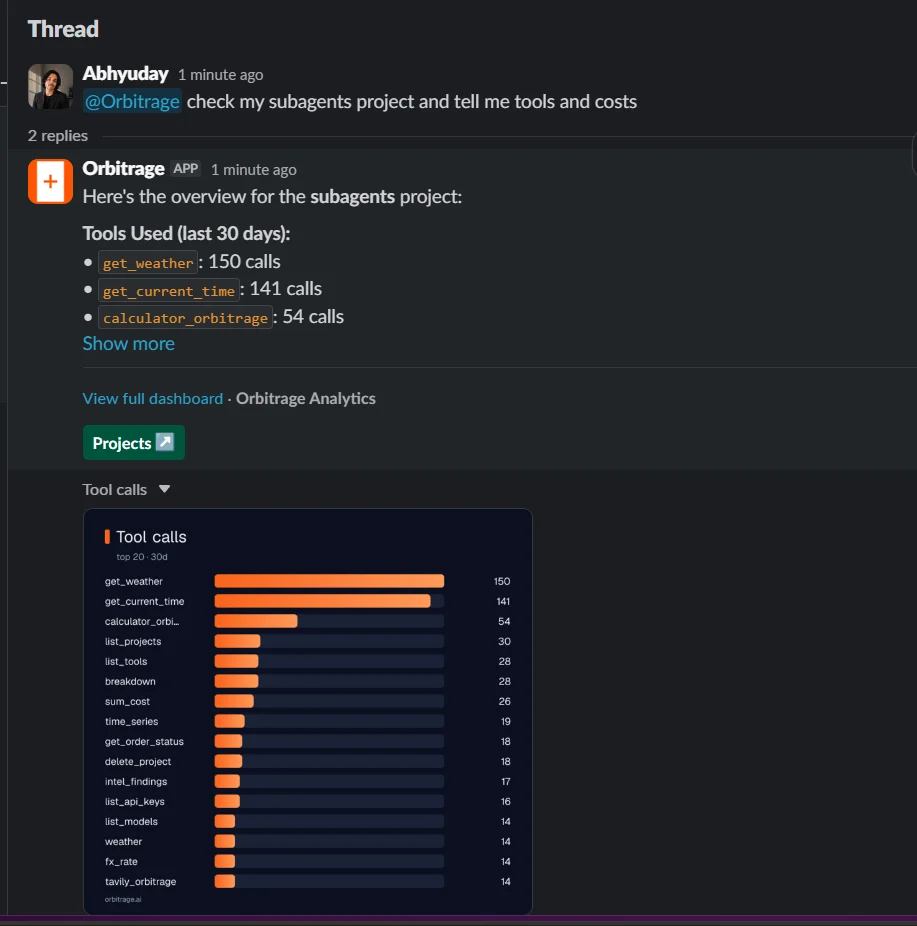
Ask the Orbitrage agent anything in a thread — it answers in-thread with a takeaway and a rendered chart.
What you can do from Slack
Onboarding — go from zero to a live key
Onboarding — go from zero to a live key
DM the bot for an onboarding card. Create my first project → a modal → your API key plus an integration guide arrive in the DM (the key is shown once, ephemerally). The App Home tab is a persistent starting point.
Analytics — ask any question, get a chart
Analytics — ask any question, get a chart
Mention the bot or DM it: “cost trend last 7 days”, “top models by spend”, “which workflow errors most”, “anomalies today”. You get a text takeaway plus a rendered PNG chart in the thread. Same engine as Ask Analytics.
Admin — create projects, keys, and alerts
Admin — create projects, keys, and alerts
“create a project called Prod”, “create an API key for Prod”, “alert me when cost goes over $50/day”. Each write shows a Confirm button first; on confirm, the bot executes it and delivers any secret (like a minted key) ephemerally.
Deep dives — background root-cause briefs
Deep dives — background root-cause briefs
“deep dive on what’s wrong” kicks off a background investigation that posts a root-cause brief (and reports) back into the thread when ready.
Slash command — answers in your DM
Slash command — answers in your DM
/orbitrage <question> works from anywhere, even channels the bot isn’t in — the answer arrives in your DM.Permissions
- Anyone in the workspace can ask read-only analytics questions.
- Only the installer can create, mint, or delete. Those actions run as the installer’s Orbitrage account, and every write requires an explicit Confirm click. A non-installer asking for a write is politely refused.
Connect a workspace
1
Install the app
From the dashboard’s Customise → Slack section, click to install and authorize the Orbitrage Slack app into your workspace via OAuth.
2
A channel is set up for you
On install, the bot creates (or joins) an
#orbitrage-alerts channel and sends a welcome message. If it can’t, it DMs the installer with next steps.3
Start talking to it
DM the bot,
@mention it in a channel, or use /orbitrage. That’s the whole setup.Proactive alerts
With no further configuration, the Slack agent will:- announce when your first workflow goes live (your first real LLM call), and
- post anomaly alerts when traffic deviates from its baseline (the detection in the Intelligence layer).
Two ways to send to Slack
Beyond the agent, Slack is also a delivery target for alerts:Disconnecting from Customise → Slack revokes the bot token and removes the installation. Read-only analytics never expose secrets; minted keys are always delivered privately (ephemerally) to the installer.